iPhone · AR measuring · Bubble level
The tape measure that lives in your iPhone.
Point the camera, tap where the measurement starts and ends, read the length. Width, height and area in augmented reality, plus a bubble level that is always free.
Four tools, one camera
The same modes you see in the app. Each one works on the live camera picture, as you move.
-
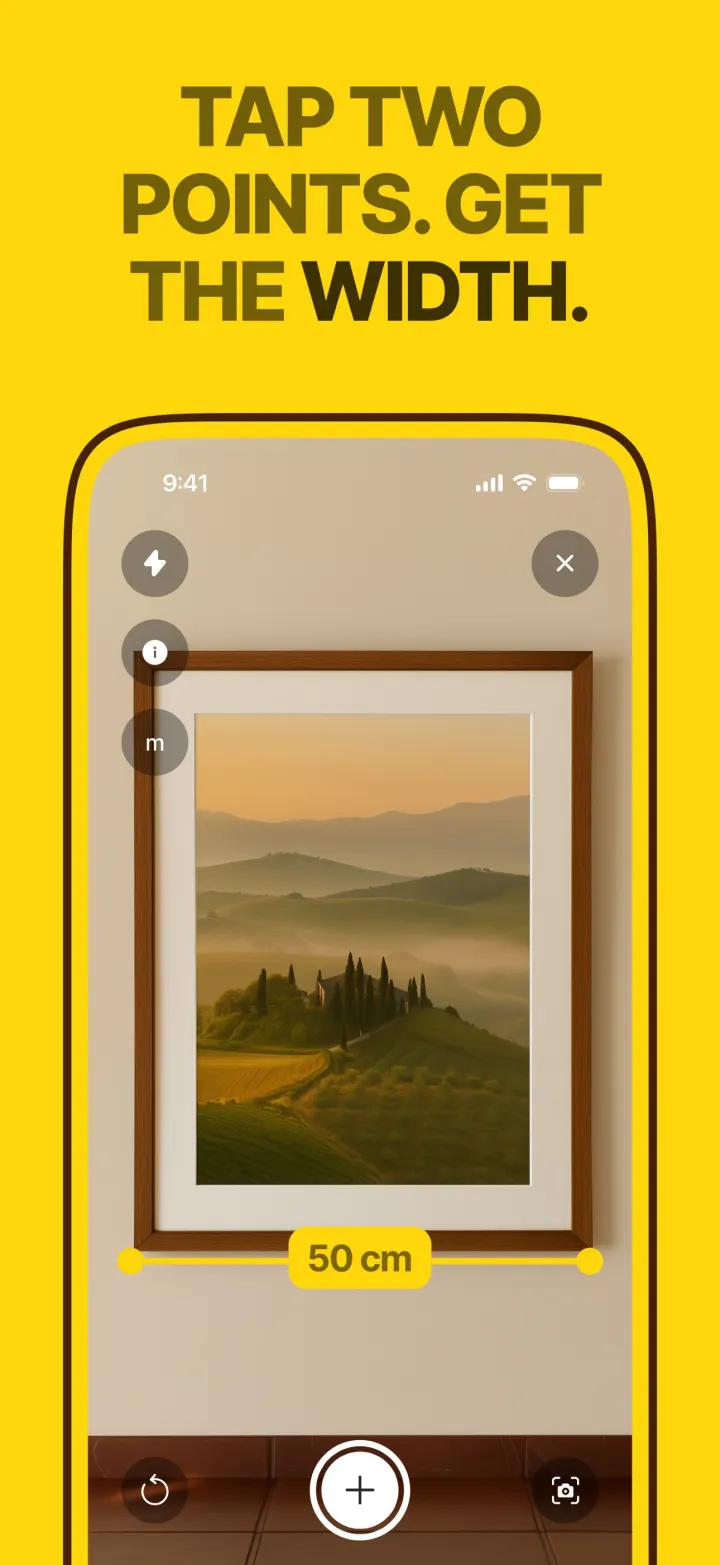

Width
Tap one edge, move sideways, tap the other. Doors, shelves, sofas, picture frames.
Free: 3 width measurements a day · Premium: unlimited
More about it -
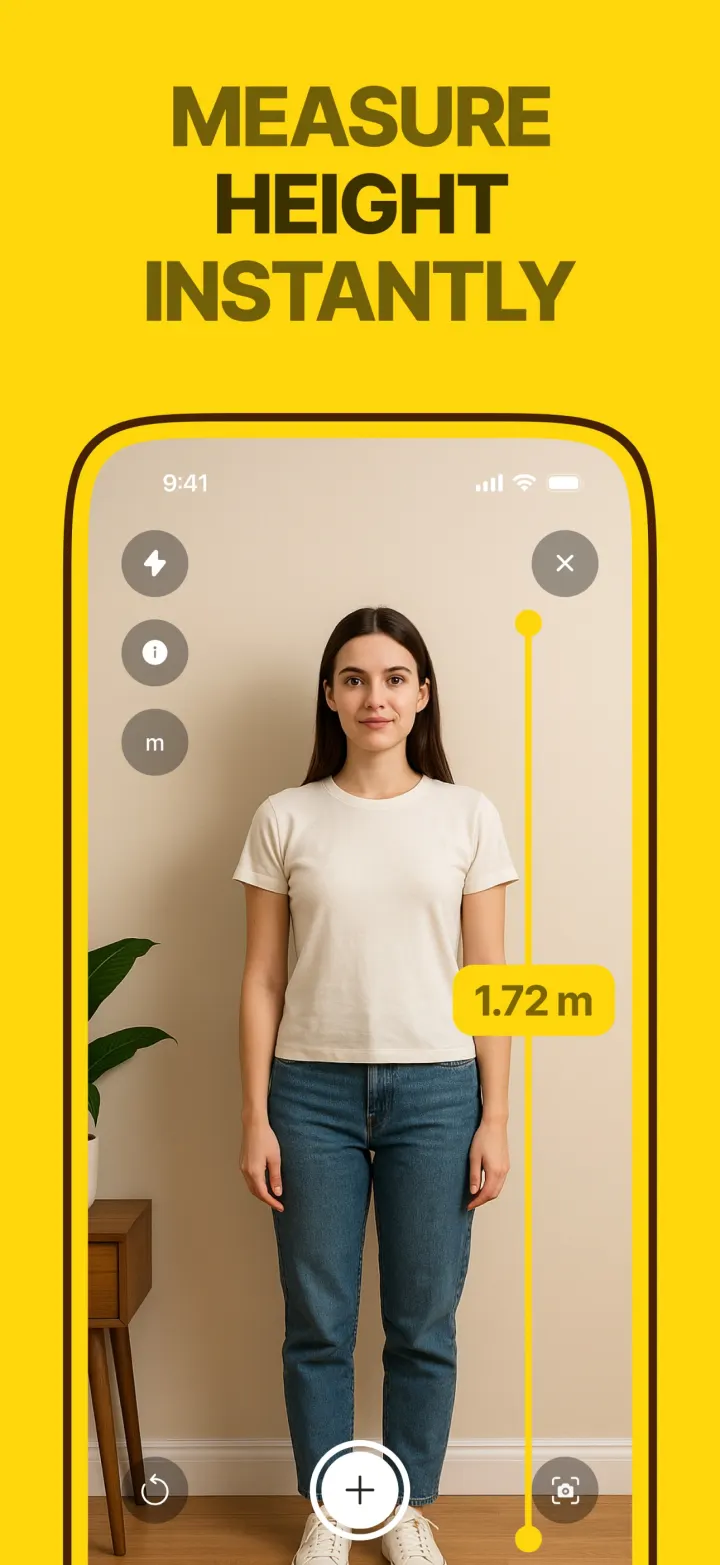

Height
Aim at the base, then the top. People, walls, cabinets, ceilings.
Premium tool · free trial on the weekly plan
More about it -
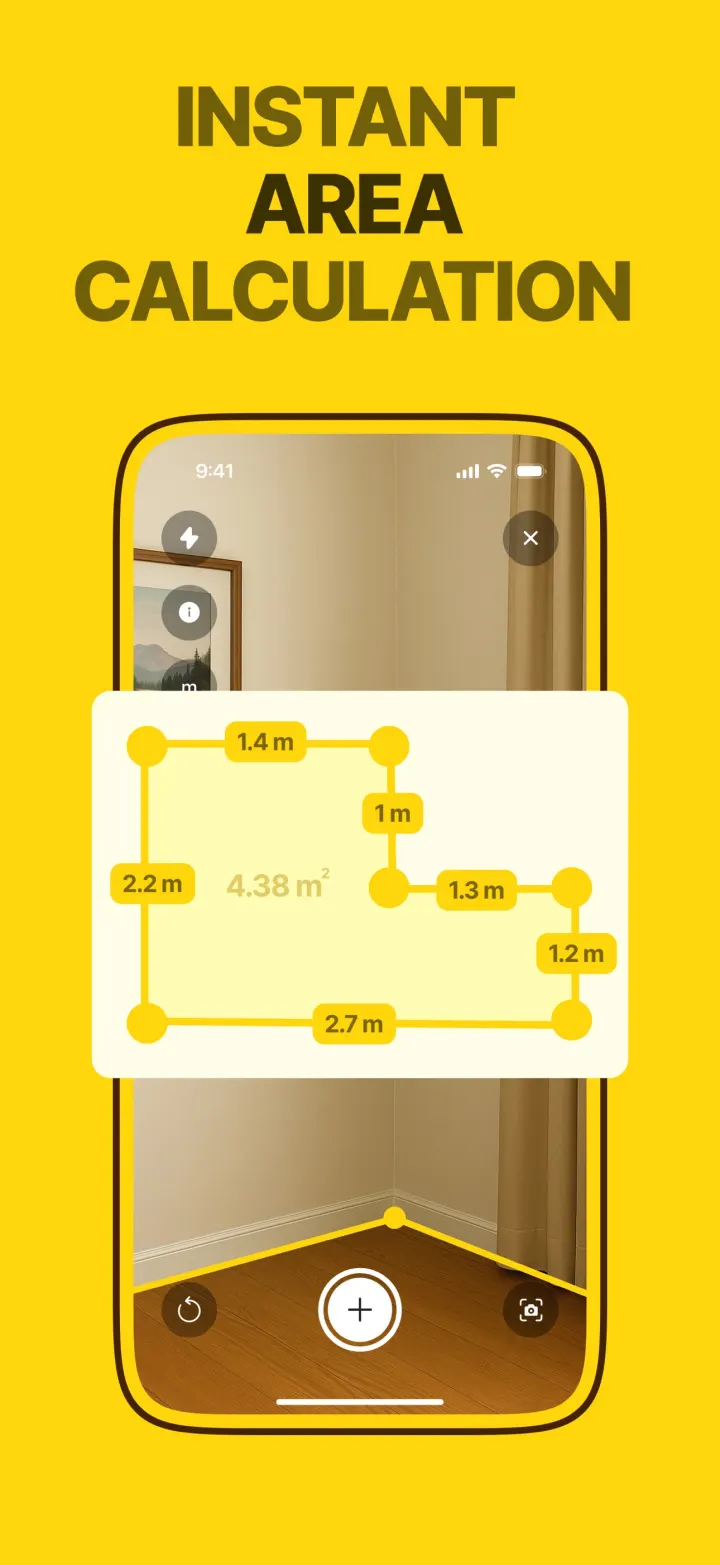

Area
Place points around a floor or a wall and close the shape. Each side and the total area.
Premium tool · free trial on the weekly plan
More about it -
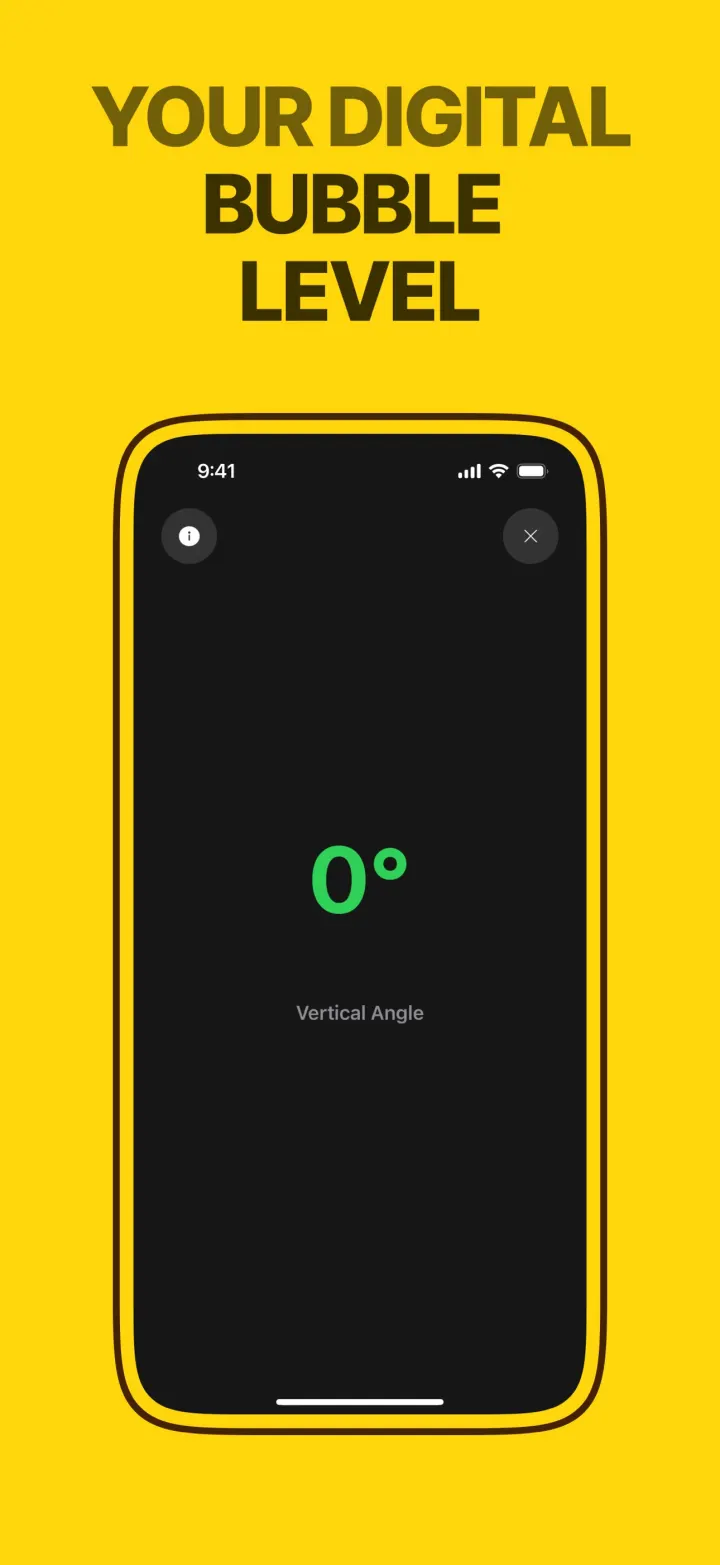

Level
A bubble level for vertical, horizontal and flat surfaces. It switches as you turn the phone and turns green when true.
Free · no limit
More about it
Three taps to a measurement
- 1
Move the phone slowly so the app can read the room. When it says AR Calibrated, you are ready.
- 2
Put the center mark on the first point and tap the shutter. A yellow line follows you.
- 3
Tap again on the second point. The length stays on screen, in meters, inches or feet.
What is free, and how accurate it is
Free
The bubble level, with no limit. Width measurements, 3 a day.
Premium
Unlimited width, plus the height and area tools. Weekly with a free trial, or yearly.
Accuracy
AR measuring is quick and close, not millimeter-exact. The error grows with distance and drops in good light, so before you cut anything, check the number once with a real tape.
Measuring guides
The questions people type into Google about tape measures, rulers and rooms, answered with real numbers.
-
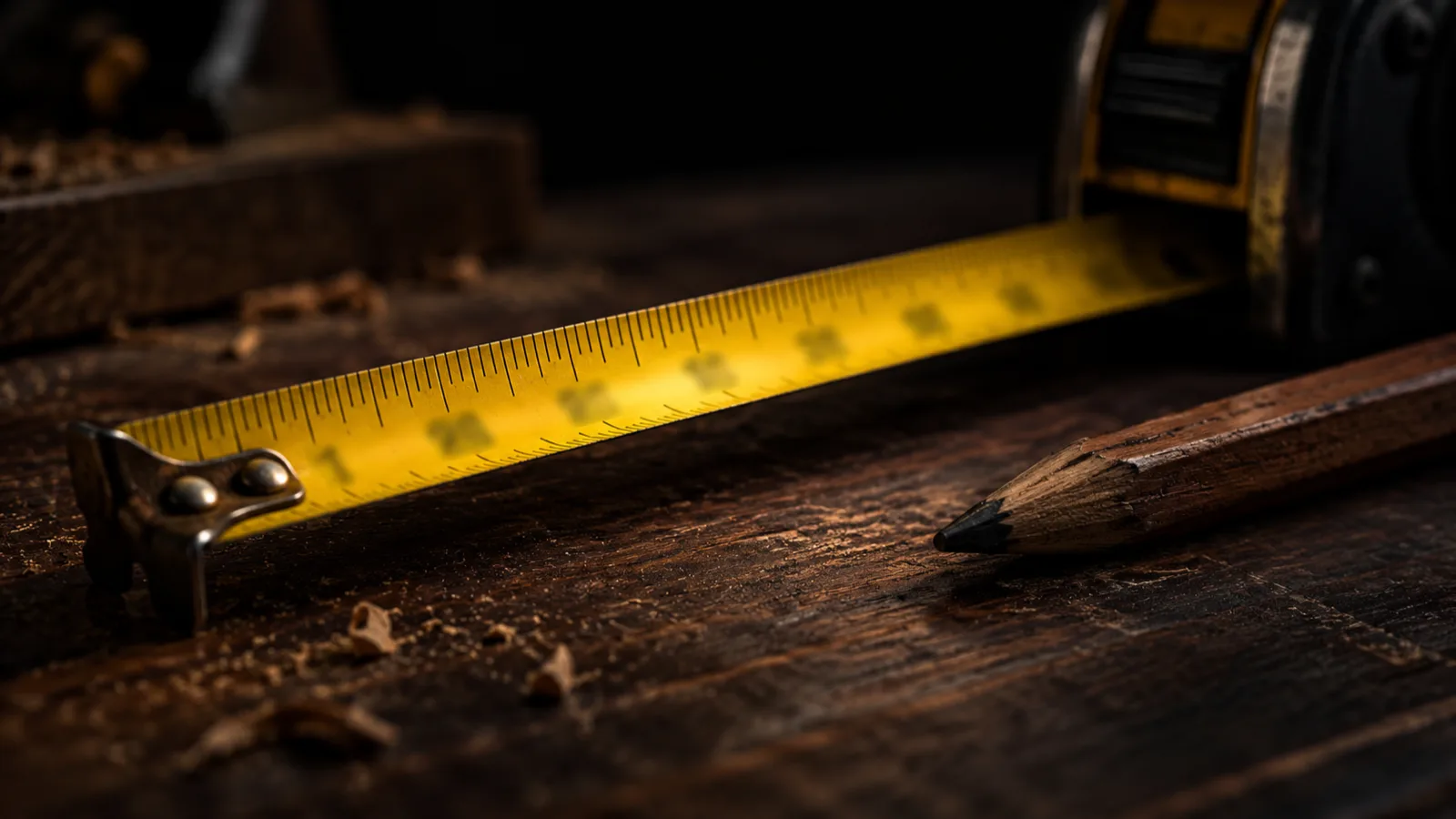 Tape measure basics
 How to read a tape measure
How to read a tape measure in inches: what each line length means, how to count sixteenths, read feet and the metric side, plus a full fractions chart.
-
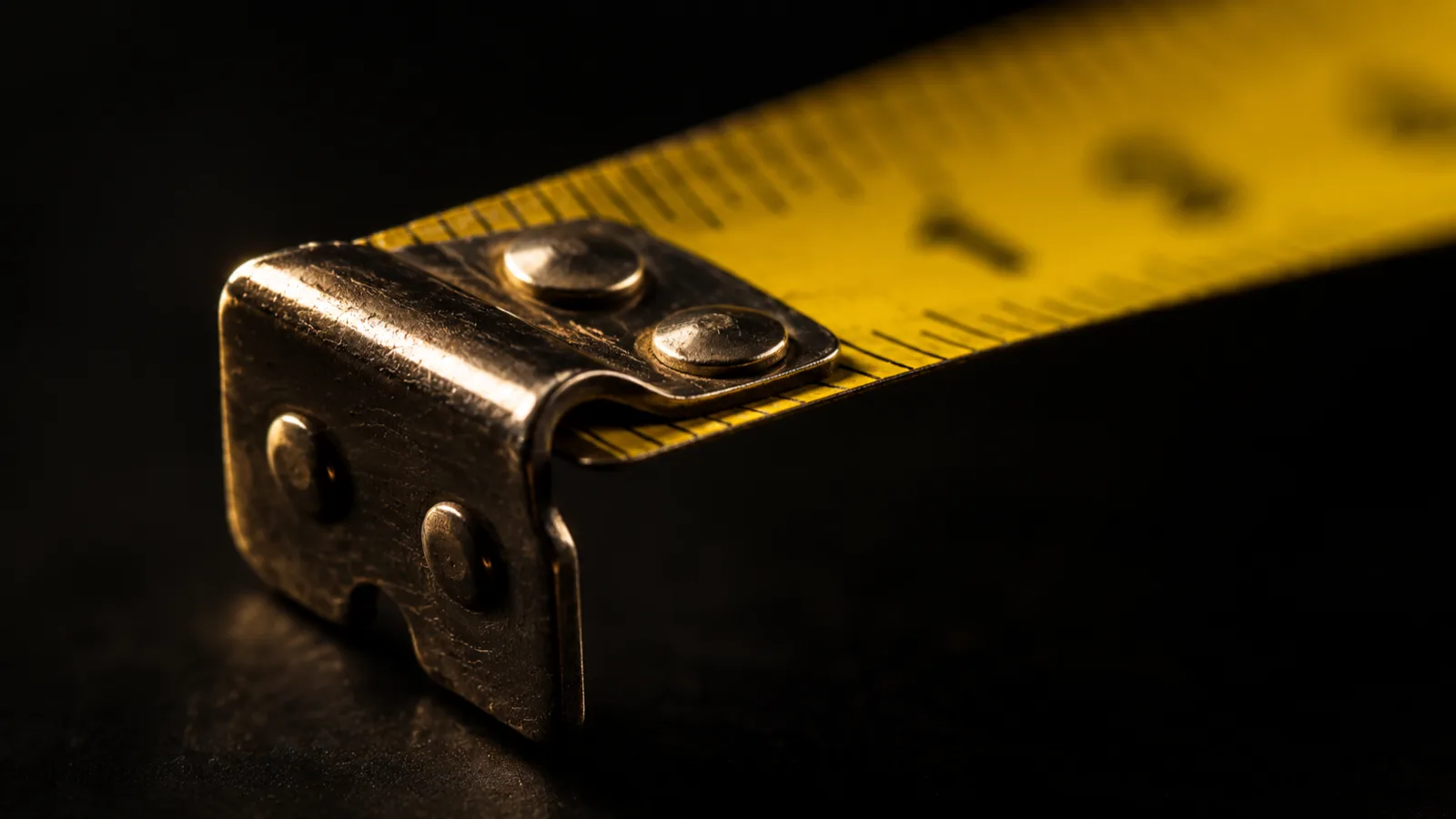 Know your tape
 Tape measure markings explained
Tape measure markings explained: inch fractions, foot markers, red numbers every 16 inches, black diamonds at 19.2 inches, the sliding hook and case length.
-
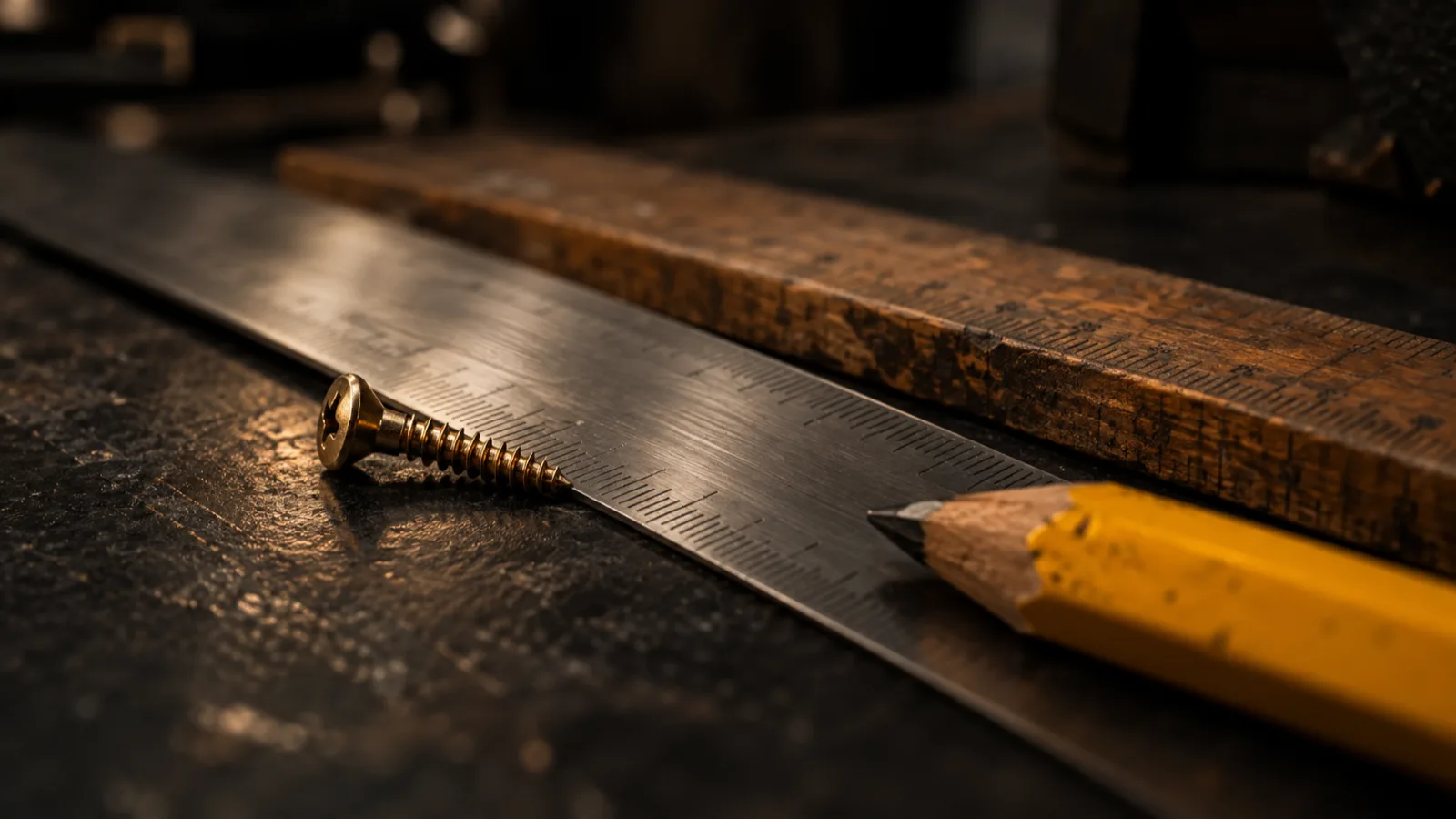 Ruler basics
 How to read a ruler
How to read a ruler in inches and cm: what each line means, an inch fractions chart, a mm-to-inch chart, worked examples and where to put the zero mark.
-
 Area and flooring
 How to measure square feet
How to measure square feet for any room: length × width, L-shapes, triangles and circles, sq ft to m², flooring waste and wall area for paint.
-
 Screens and spaces
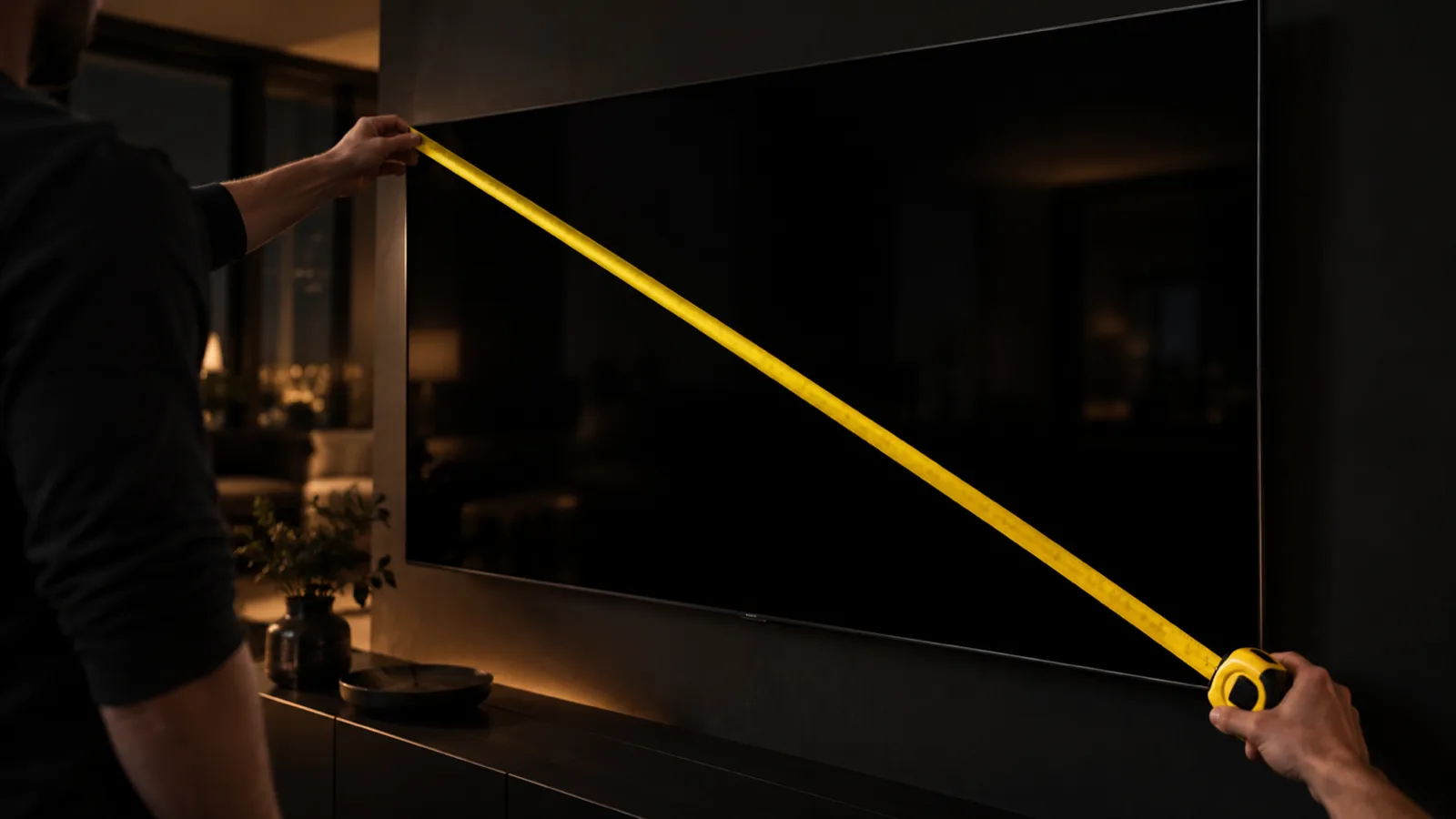
 How to measure a TV
How to measure a TV: screen size is the diagonal of the visible screen, corner to corner, without the bezel. Width and height chart for 32 to 85 inch TVs.
-
 Windows and blinds
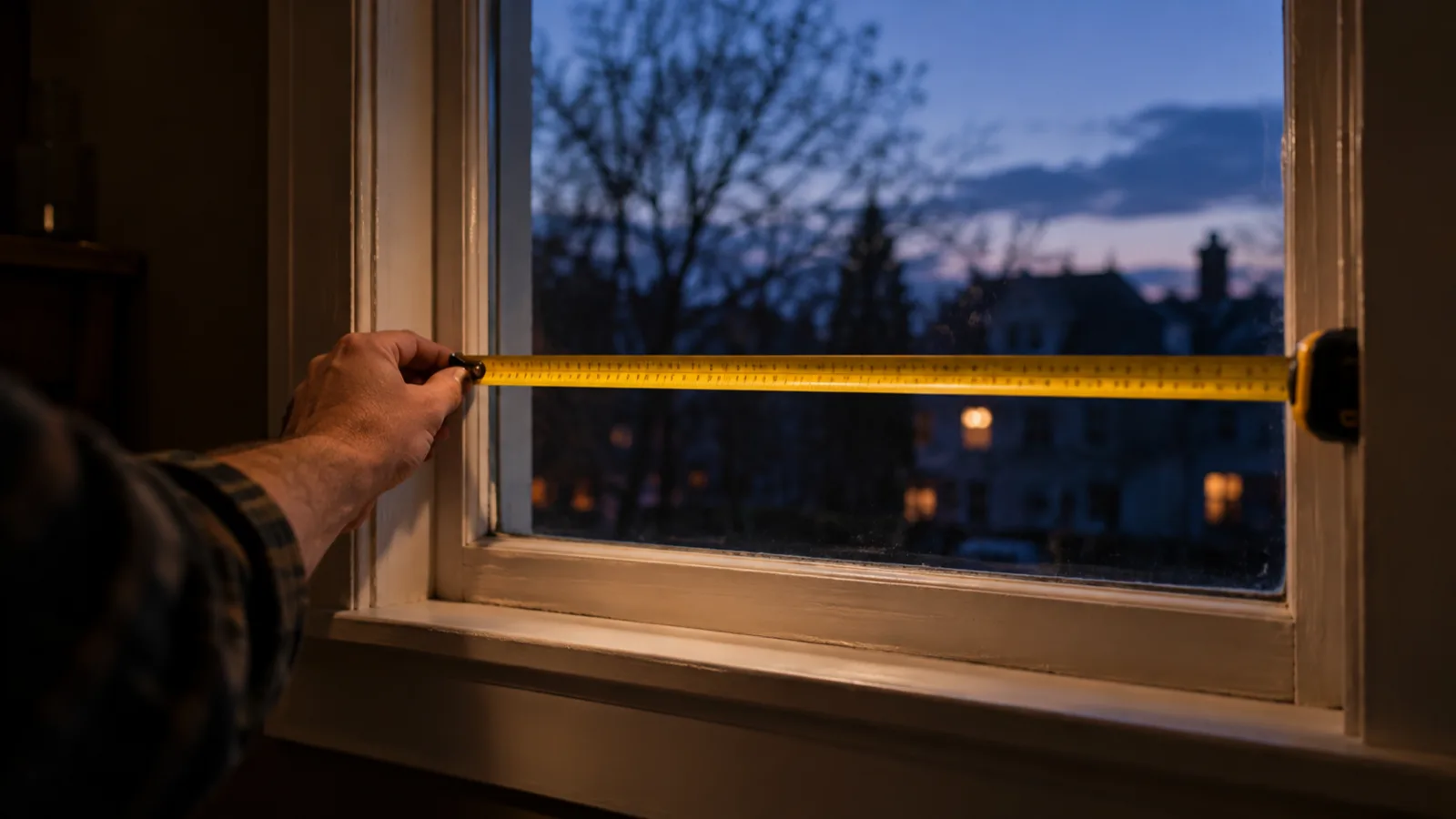
 How to measure a window
How to measure a window for inside or outside mount blinds and for replacement windows: where to measure, which number to use, and how to round.
Questions about the app
How do I take my first measurement?
Open a tool and move the phone slowly over the floor or the object until the badge says AR Calibrated. Put the center mark on the first point, tap the shutter, move to the second point and tap again.
How accurate is it?
AR measuring is close, not millimeter-exact. The error grows with distance and shrinks with good light and textured surfaces. Use it for planning and estimates, and confirm with a tape measure before cutting materials.
Why does it say it cannot find a surface?
ARKit needs detail to lock onto. Plain white walls, glass, mirrors and dark rooms are hard. Turn on the flashlight, point at the floor first, or aim at an edge with some texture.
Does it need LiDAR?
No. It works on any iPhone that runs iOS 17. LiDAR models find surfaces faster in low light.
Can I switch between meters and feet?
Yes. Choose metric, inches or feet in Settings. The app starts in the unit your country uses.

Measure it with your phone
Width, height and area with the iPhone camera, and a bubble level that is always free.